
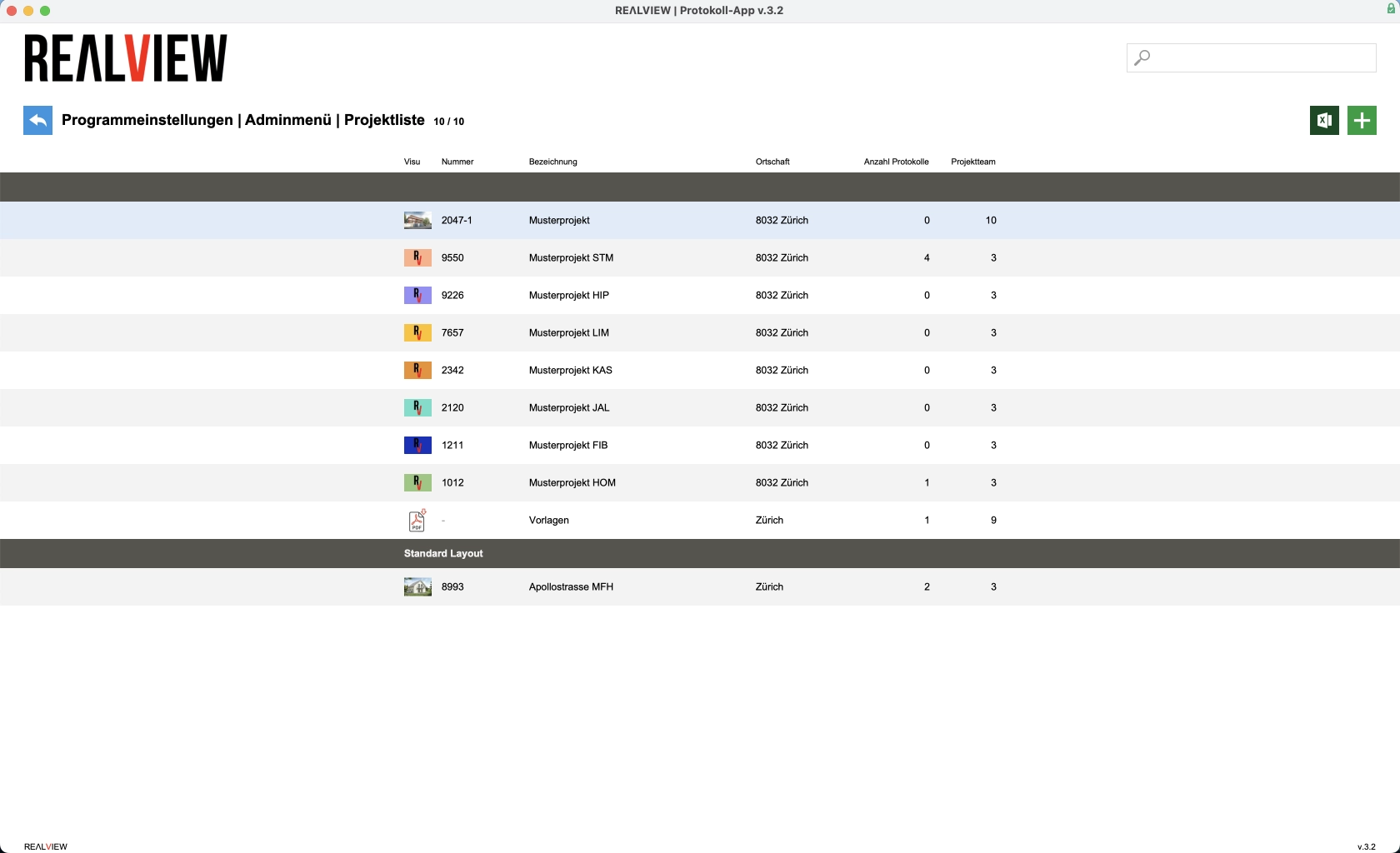
You will now see an overview of all projects. If you use different layouts, the projects will be displayed below the gray bar with the print layout. To edit the project details for an existing project, select it from the list.
You can export your projects to Excel using the Excel icon in the top right corner. This allows you to view the projects as a list in Excel.
You can create a new project using the green plus sign in the top right corner.
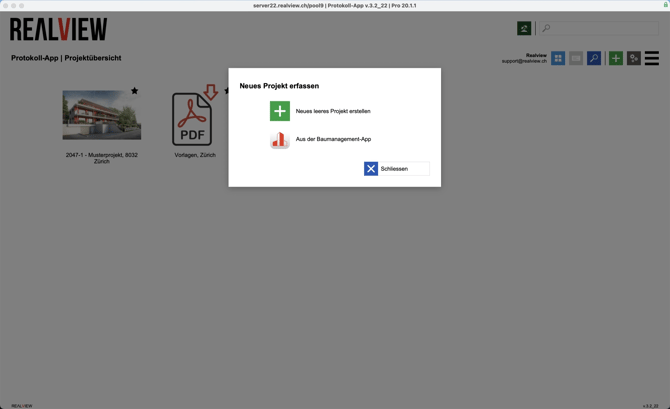
Create Project
A new project can be created using the green plus sign. If you also use the REΛLVIEW Baumanagement, you have the option of linking the new project to the construction management project. Otherwise, the window for project details opens directly.
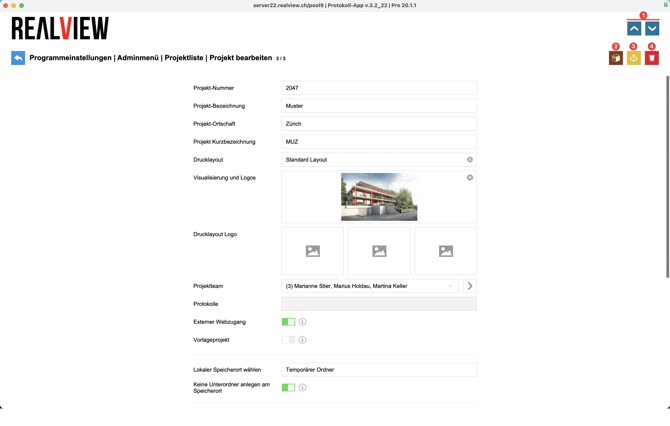
You can switch between projects using the arrow keys (1).
You can also archive a project (2). The project and logs can still be viewed, but no new logs can be recorded.
You can export all logs for a project using the yellow icon (3). You can then specify where the logs should be saved.
You can delete a project using the trash can (4). Projects can only be deleted if no logs have been created in the project.
First, you can enter the project number, project name, project location, and project short name.
If different log layouts are used, the print layout can also be selected. In addition, below the visualization, you have the option of adding further logos, which are added to the print layout. These are then also displayed at the top center of the log and the invitation. By default, your logo and address are always printed in the footer of the print layout.
The project team can then be filled in. The project team has access to all logs in the project. However, individual logs can be restricted in the minutes settings.
If external web access is activated, minutes participants have the option of logging in via the external link, which is stored in the admin menu to log in via a browser and view the minutes that have been sent to them. Further information and setup instructions can be found at Protokoll | External Access.
If a project is set as a template project, all minutes in this project are automatically templates.
If a local storage location is selected, all logs for this project are automatically saved to this location when they are sent. You can also choose whether subfolders should be created for each log series (log series/log number) at the local storage location.
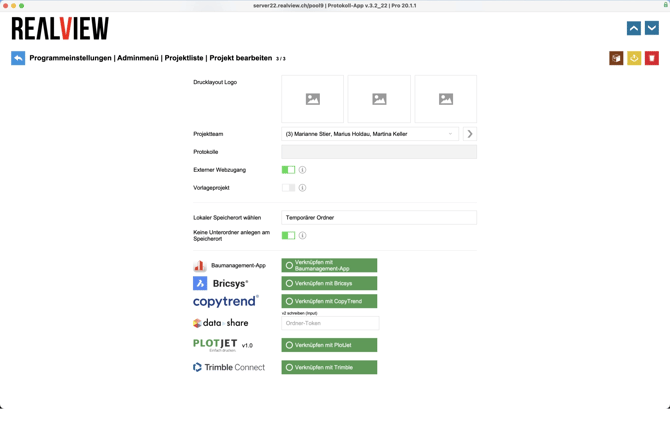
At the bottom, you will find options for linking the project to one of the available programs. For more information about the interfaces, please contact REΛLVIEW Support at 044 512 18 00 or support@realview.ch.
If you want to change the project details or project participants for an existing project, you can do so in the admin menu in the project list. Please note that this function is only available to superusers.