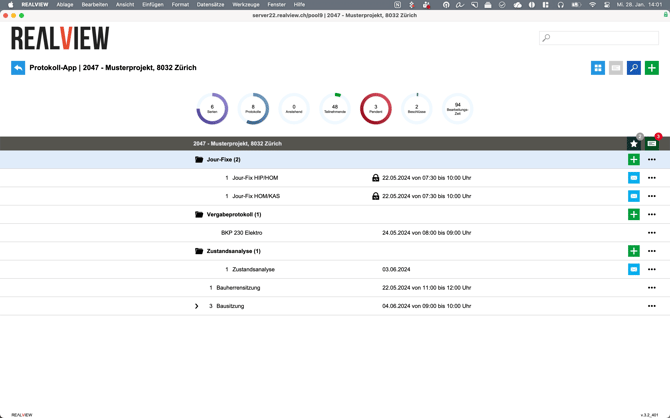
In the log overview, you can see the logs that have already been recorded and that have been approved for you for a project. Logs that have a lock in front of the log date have restricted visibility. You can use the Settings to check which people assigned to the project can see the log.
The logs can be opened by double-clicking on them.
The search function (1) can be used to search for minutes by name (quick search). Minutes can also be searched using the magnifying glass icon (4). This option allows you to search for keywords that appear in a log. It searches the entire database (logs, agendas, participants, text entries, etc.). Since the entire database is searched, this search may take a little longer. All results found are then displayed.
In view (2), you can set how the minutes are displayed and which minutes are to be displayed. You can choose whether you always want to see the most recent minutes or, by default, also the older minutes in a minute series. You can also activate or deactivate whether the statistics should be displayed in the project.
Under My pending items (3), the pending items assigned to you for this project are displayed. It shows you the pending items from all log series in this project.
A new log can be created using the green plus sign (5).
The list of decisions (6) and list of pending items (7) at project level show all decisions and pending items that have been recorded in all meeting series.
If the email icon (8) is displayed, this protocol has not yet been sent. To send the protocol, double-click to open it and send it.
The three dots (9) can be used to create or delete folders and move protocol series into or out of a folder.
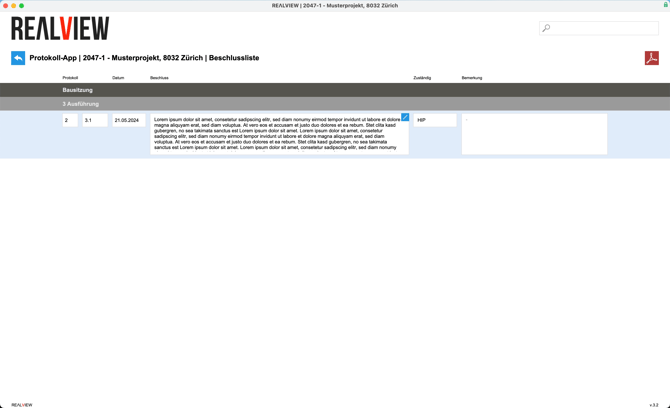
Project list of decisions
All decisions in this project are displayed.
The PDF icon can be used to create a PDF file of the displayed list of decisions. All pending items displayed are always printed on the PDF.
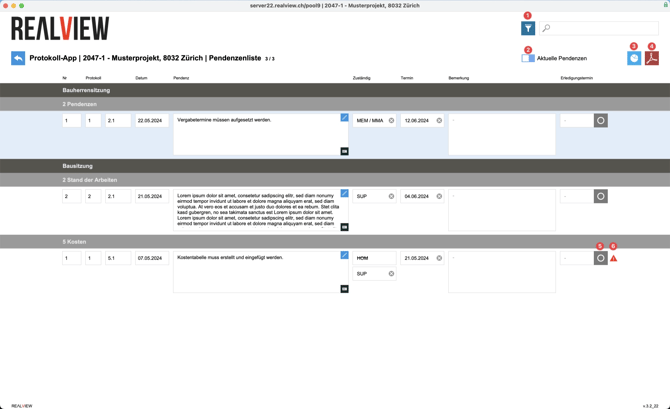
Project list of pending issues
All decisions and pending items in this project are displayed.
The filter (1) can be used to filter pending items by responsibility. Free text can be entered in the search box next to it to search for specific items.
The view can be switched between current pending items (2) and all pending items.
In addition, the statistics (3) for all pending items in this project can be viewed. In the statistics, you can view various information about the minutes in this project. For example, you can see how many minutes have been written and who has written how many. You can also see how many pending items are still open and which participants the open pending items are assigned to.
With the PDF icon (4), the displayed list of pending items can be created as a PDF. All pending items displayed are always printed on the PDF.
A pending item can be marked as completed both in the protocol and in the cross-protocol list (5). If a pending item is overdue, a warning symbol (6) appears next to it.
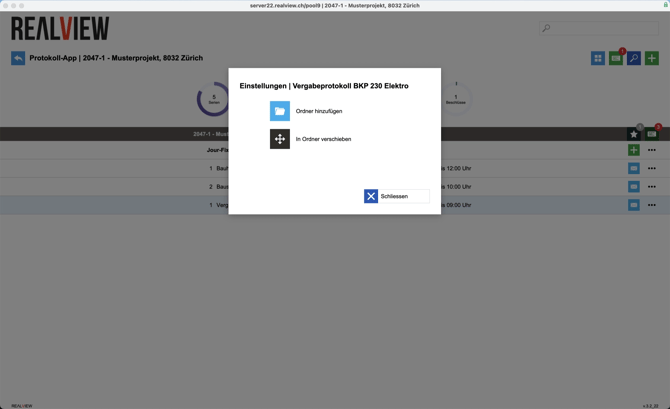
Folder
You can create folders and move any number of meeting series into a folder. It is not possible to divide a meeting series between two folders. It is also not possible to create subfolders.
If you select the three dots next to a protocol that is not linked to a folder, you will be given the option to add a new folder or move the protocol to a folder. If you add a new folder, you will be prompted to specify the folder name in a second step.
If you open the options for a log that is already in a folder, you have the option of moving it to a new folder, moving it to an existing folder, or removing it from the current folder.
For the folder, you have the options to add another folder, rename the current folder, or delete the folder. If the folder is deleted, all session series contained in it will be moved from the folder.