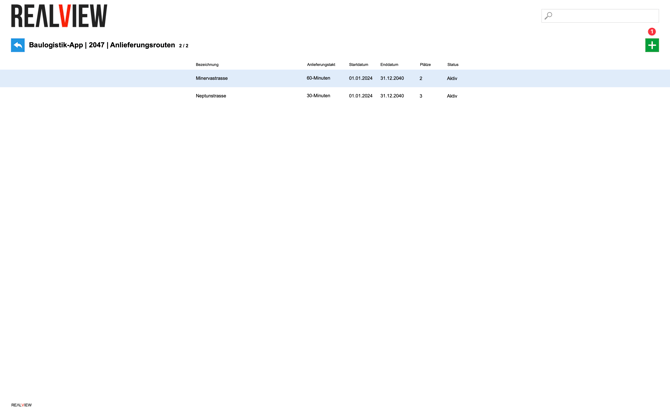
You will see an overview of all delivery routes. You can search for a name using the search field at the top right.
You can create a new delivery route using the green plus sign (1).

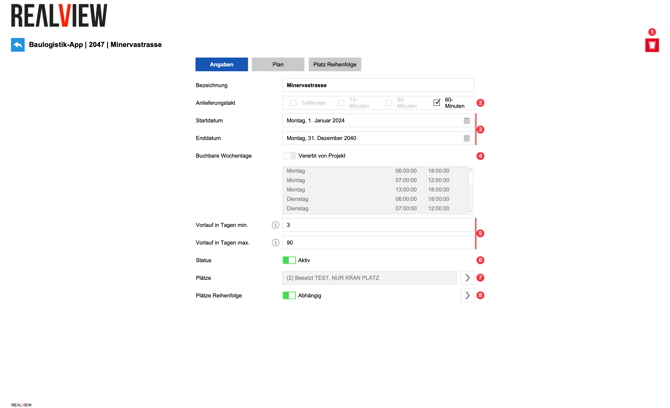
The space can be deleted using the red bin icon (1). If there are already bookings for this delivery route, it can no longer be deleted.
The cycle (2) can be set. The times in this cycle are then made available for bookings (for example, for 30 minutes: 07:00-07:30, 07:30-08:00, 08:00-08:30, etc.). The start and end dates (3) can be entered. The start and end dates of the delivery route must be within the start and end dates of the project.
The bookable weekdays (4) can be taken from the project settings. If these are entered individually, the setting can be made in the same way as in the project settings.
You can set the lead time (5) for bookings, i.e. the minimum or maximum number of days before the booking that the appointment must be made.
If the status (6) of a delivery route is active, the delivery route can be used. If you want to stop a delivery route, the status can be set to inactive.
Under places (7), you will see all the spaces that are assigned to this delivery route. Use the arrow to jump directly to the settings for the space.
The dependency between positions (8) can be enabled. Once enabled, an additional tab will appear at the top. You can find further information about this at the bottom of the page.

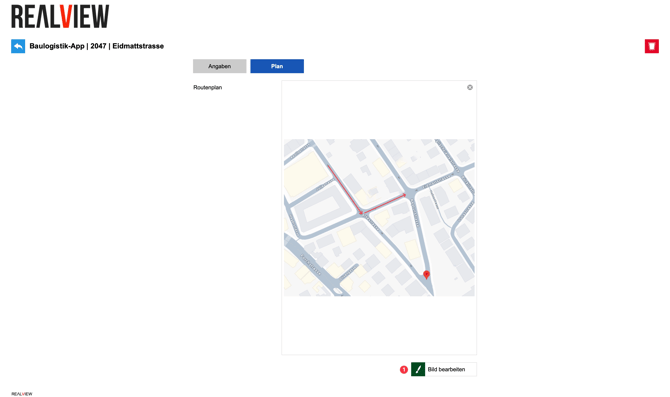
Under the Plan tab, you can upload a visualisation that will be displayed to project participants and companies when selecting the delivery route during appointment booking.
The visualisation can also be edited (1) to draw something or add text.

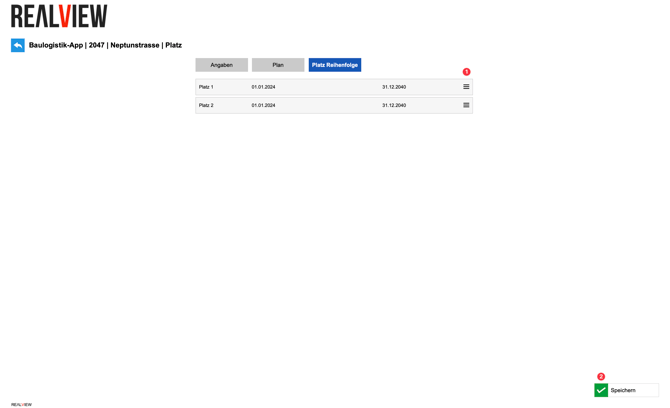
In the position order, the dependency between positions can be defined. The positions can be rearranged using the three-line handle (1), and the changes can be saved at the end by clicking Save (2).