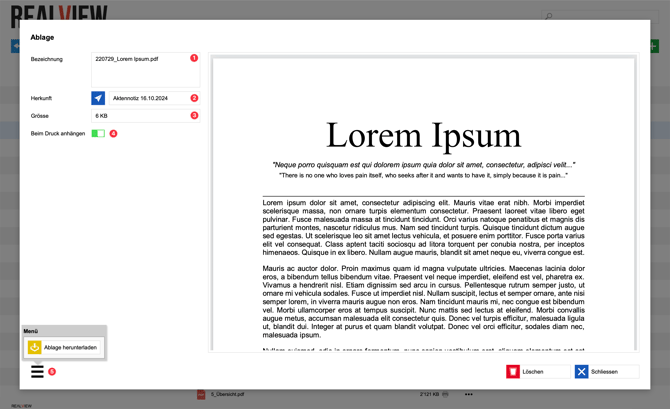
In File storage you have the option to add files to the project. In addition, all blocked documents are automatically stored in File storage.
Additional files can be added manually to File storage via the green plus (1).
If there is an icon with gears (2) next to a document, this document was generated automatically. This happens, for example, when a blocked Construction journal, a blocked Note or another blocked document is created.
Documents that have no icon (3) on the right-hand side were, for example, attached to a Note or a Construction journal, but were not included in the printout there.
Documents that were uploaded directly to File storage receive the project symbol (4) on the right-hand side.
Documents that have a printer symbol (5) on the right-hand side were, for example, attached to a Note or a Construction journal and included in the printout there.
The three dots (6) can be used to create a new folder or move documents to a folder.
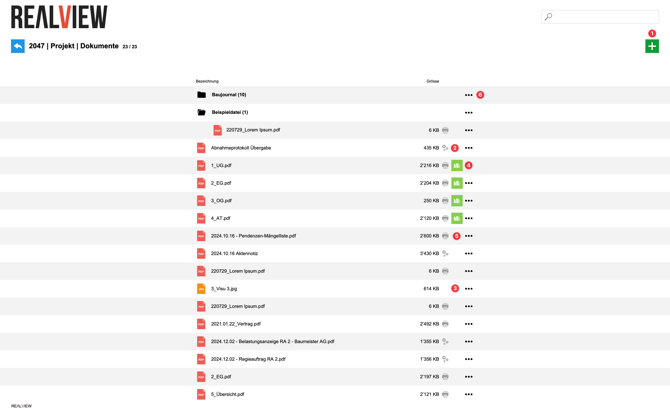
When a document is selected, a preview of the document is shown and various options are available:
- The Description (1) of the document can be changed.
- You can see the Origin (2) of the document, i.e. where it was created.
- In addition, the Size (3) of the document is displayed.
- You can choose whether this document should be attached (4) when printing or creating the PDF.
- The document can be downloaded via the three bars (5).