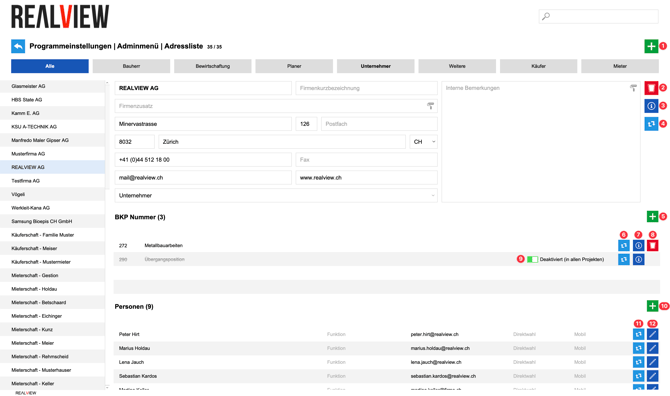
The Address list in the Admin menu shows you all addresses from all projects that have ever been entered.
Via the large green plus (1) you have the option to enter a new address, which can then be imported into the projects.
The recycle bin (2) deletes an address. The address is deleted in all projects, including all BKP assignments. If the address has already been used in projects, it is disabled.
You can view information (3) about this address, showing in which projects it exists. You can switch directly to the project via the arrow button next to it. In addition, the respective icons are shown in colour if, for example, the address has already been used for an acceptance report or a Tasks and defects list.
If addresses exist more than once, they can be merged (4). Please refer to the instructions further below under Merge addresses.
Additional BKP numbers (5) can be added to an address. The BKP numbers are not added to the projects automatically, but can be used when importing an address. For BKP numbers you also have the following options:
- BKP numbers can be merged (6). In the first step, select the BKP number(s) to be transferred to another existing BKP number. In a second step, select the BKP number to which the previously selected BKP number(s) should be moved. After merging, the selected BKP numbers no longer exist. The merge is also applied in the projects.
- You can view information (7) about this BKP number, showing in which projects an address exists. You can switch directly to the project via the arrow button next to it. In addition, the respective icons are shown in colour if, for example, the address has already been used for an acceptance report or a Tasks and defects list.
- The recycle bin (8) deletes the BKP number from this address. The BKP number is disabled (9) for this address in all projects.
Additional people (10) can be added to an address. The people are not added to the projects automatically, but can be used when importing an address. For people you also have the following options:
- People can be merged (11). In the first step, select the person(s) to be transferred to another existing person. In a second step, select the person to which the previously selected person(s) should be moved. After merging, the selected person(s) no longer exist. The merge is also applied in the projects.
- You can view information (12) about this person. Here you have the option to edit the details of a person. The details are also updated in the projects. You can see in which projects a person exists and with which function. You can switch directly to the project via the arrow button next to it. In addition, the respective icons are shown in colour if, for example, the address has already been used for an acceptance report or a Tasks and defects list.
Merge addresses
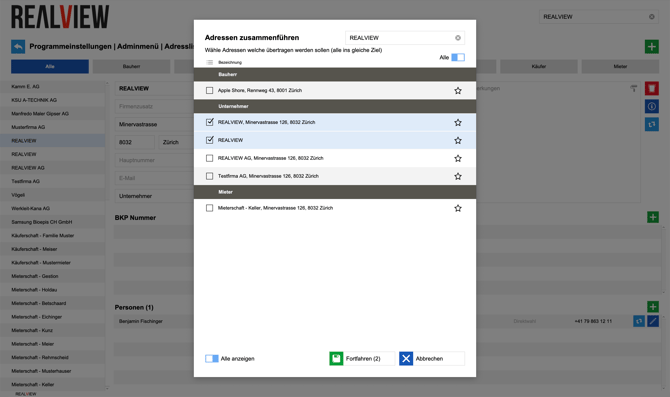
In the first step, select the address(es) to be transferred to another existing address. The address to which the addresses are to be moved must not be selected in this step. After merging, the selected addresses no longer exist. The merge is also applied in the projects.
Caution: This action CANNOT be undone!
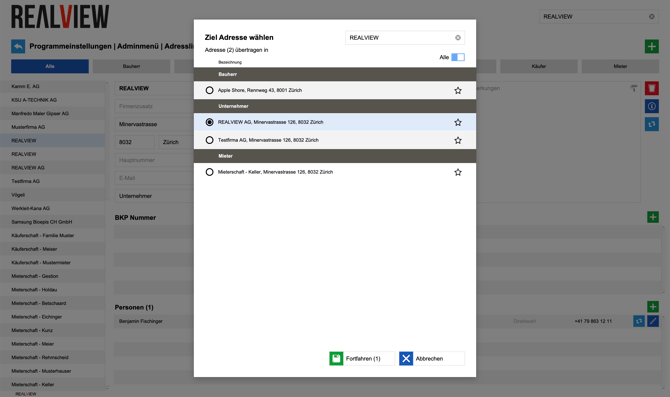
In a second step, select the address to which the previously selected addresses should be moved.
The people and BKP numbers of the previously selected addresses are moved to this address.