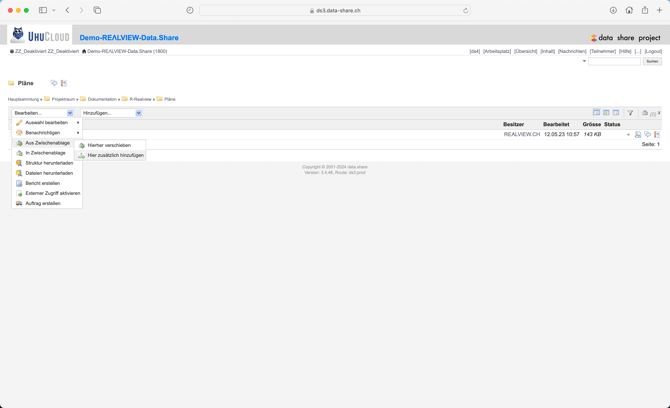
First, Truninger (Data.Share) must be informed which project should be linked. Truninger will then create a REΛLVIEW folder for this project on Data.Share and provide the project token to REΛLVIEW. Once the token has been stored in REΛLVIEW and Truninger has created the REΛLVIEW folder, you can link the plans on Data.Share to the REΛLVIEW folder.
Transfer Plans from Data.Share to the REΛLVIEW Folde
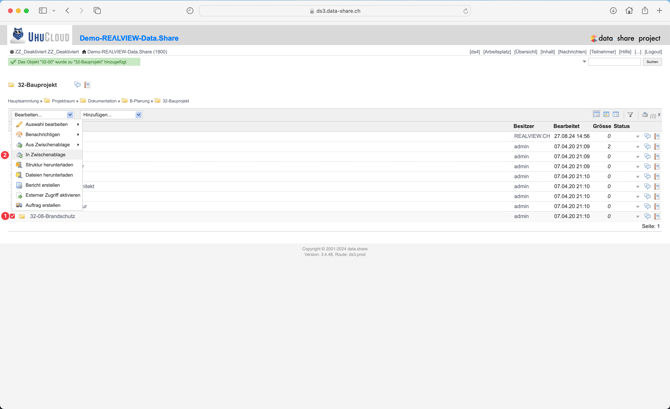
To do this, select the desired plans or folders in the project (1) and transfer them to the clipboard via Edit (2). The number of files/folders currently in the clipboard can be seen on the right-hand side next to the shopping cart icon (3). When you click the shopping cart icon, all files/folders currently in the clipboard will be displayed.
Next, you can switch to the REΛLVIEW folder created by Truninger (R-REΛLVIEW) and, within the “Output” folder, paste the files/folders from the clipboard via Edit. It is important to select "Add here as well". This ensures that the files/folders are not only copied but also linked. This means the same file will appear in both folders. If you edit the linked file, the changes will apply in all folders. The same also applies to deleting files. If you delete the original file, it will be removed from all folders.
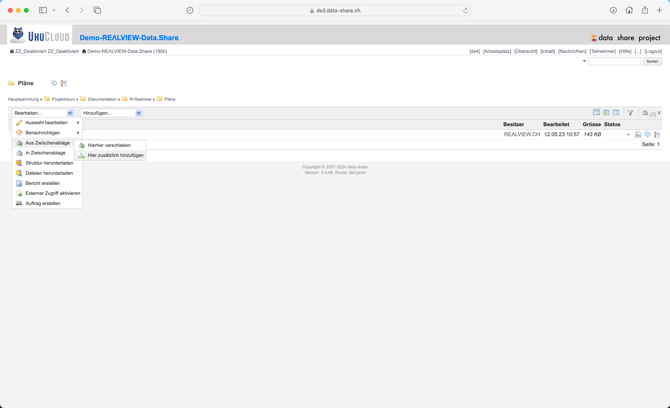
Links can be removed again at any time. To do this, select the files/folders and remove the links via Edit using "Detach here".