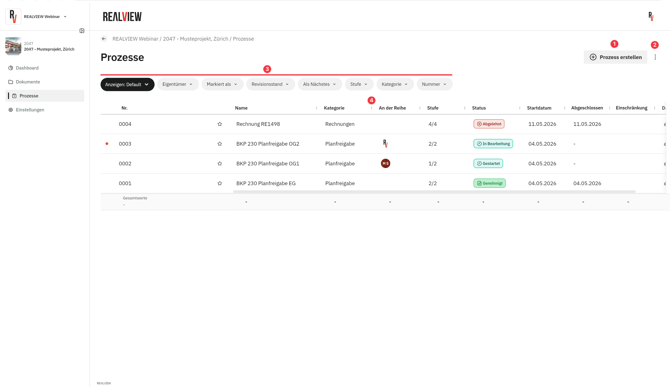
All processes are displayed in the Processes section. If your permissions allow, you can create a new process (1) or use the Options (2) to export the process list as an Excel file.
Using the filter (3), you can filter by the desired properties and save the current filter settings as a new filter via "Display as". A project manager can define which default filter is applied to which roles or persons.
You also have the option to use the three dots (4) next to each property to define which properties are shown. By default, all properties are displayed:
- No. | Each process receives a unique number for clear identification.
- Name | The name can be specified when creating the process.
- Category | The category can be specified when creating the process.
- Up Next | Shows the next responsible person. If a process has been completed, no person is displayed.
- Stage | Shows the current stage and the total number of stages in a process.
- Status | Displays one of the following statuses: Started, In Progress, Paused, Approved, Rejected.
- Start Date | The date on which the process was started.
- Completed | The date on which the process was finished.
- Restriction | If a process has been restricted to certain persons, this is shown here.
- Files | Shows how many files have been attached to a process.
Creating a New Process
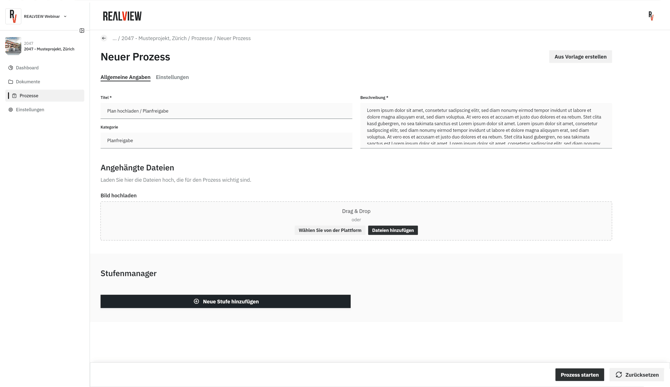
When creating a new process, you have the option to create it from a template or without a template.
Process managers also have the option to edit or extend templates.
For a new process, the title, category, and description can be entered under General Information. You also have the option here to create the process from a template.
If you wish to attach files to the process, you can also do so here.
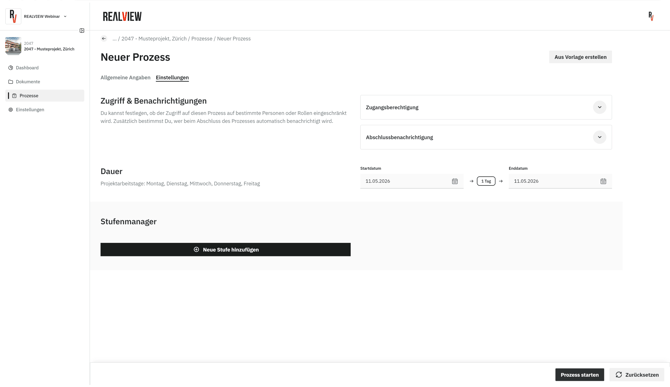
In the Settings of a process, the following configurations can be made:
- Access Permission | Each process can be individually restricted so that only certain roles or members have access. The process cannot be opened by other members. If this option is active, the label Restriction appears next to the access permission.
- Completion Notification | Select which roles or members should be notified upon completion (Approved or Rejected) of this process.
- Duration | The start date is set to today's date by default. You can adjust it to the desired date. The end date is calculated based on the various stages in the stage manager. The number of working days applicable to each stage can be entered individually. Project working days can be adjusted in the project settings.
Stage Manager
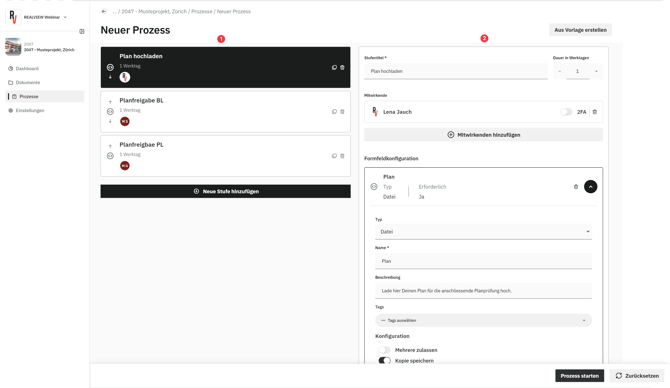
In the stage manager, the existing stages (1) are shown in the left column, and additional stages can be added. You can add as many stages as desired.
The right column displays information about the selected stage (2). The following settings can be configured per stage:
- Stage Title | The title of the stage can be entered here.
- Duration in Working Days | The number of working days allocated to each stage can be specified. Once the stage is with the contributors, they have that number of working days to complete it before the process becomes overdue.
- Contributors | Select the persons responsible for this stage. The stage must be processed by all contributors.
- Form Field Configuration | Form fields can be added and edited here. Details on the individual form fields are provided below.
- Access Permission | Restricts access to this stage to selected roles or members.
Form Fields
All types of form fields include the following details:
- Type | Specify the desired type.
- Name | Each form field requires a name so that contributors know what to do.
- Description | An optional description can be added to further clarify the field.
- Tags | Tags can be assigned to individual form fields. Previously used tags will be suggested when selecting tags.
- Configuration | The configuration varies by type. The following configuration options exist per type:
- Open Answer (Text, Number, Date) | If open answer is active, a free text, number, or date can be entered. If inactive, the possible answer values must be predefined.
- Required (Text, Number, Date, Boolean, File) | Choose whether the form field is required (mandatory) or not.
- Allow Multiple (File) | Files can be uploaded. You can specify whether only one file or multiple files are allowed.
- Save Copy (File) | If you want the uploaded file(s) to be saved, you can enable this option and select the folder in which the file(s) should be stored.
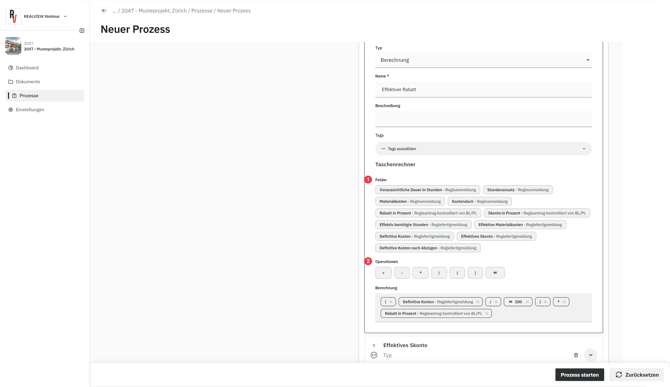
- Calculation (Calculation) | In the calculation field, you can have number fields (1) calculated using operators (2). Brackets, addition, subtraction, multiplication, division, and numbers are available.