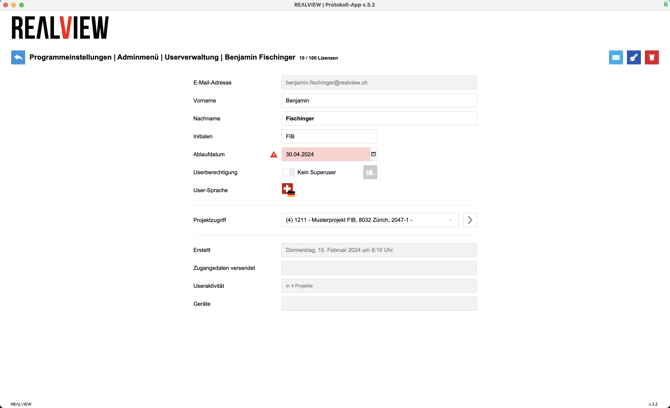
In user management, you have an overview of all users who have access to your database.
- Opens an email in your default email program with all users in the distribution list. Please note that not all email programs are compatible with REΛLVIEW or Claris FileMaker.
- Generates an Excel export with an overview of all registered users and information about them.
- Create a new user. If there are no more licenses available, the icon will be gray.
- Shows you which users are stored as superusers. If the icon is blue, it is a superuser. If the icon is gray, the person in question is not a superuser.
- Shows you which language the user has stored in this tool.
- If you have set an expiration date for a person, this will be displayed. After the expiration date, the person will be automatically deleted.
- If the icon has a green background, you can see when the last login took place. If you move the mouse over the icon, the date will be displayed. Persons for whom the icon has a gray background have not yet logged in.
- Shows you whether the person is license-relevant. This setting can only be adjusted by REΛLVIEW. For example, an external person who also has a license can be set to license-irrelevant by REΛLVIEW.
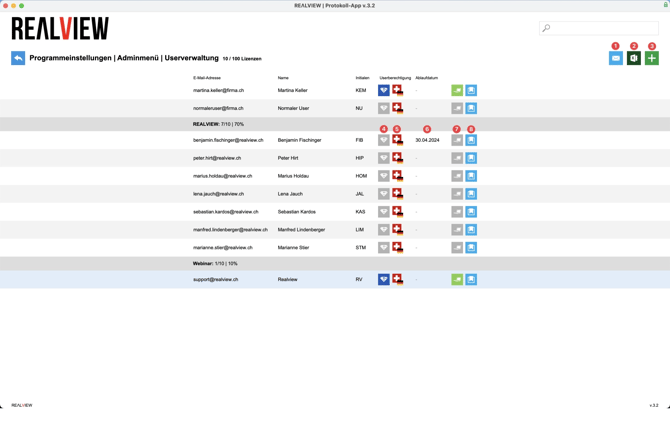
If you create a new user or edit a user by clicking on them, you can adjust their information. The email address can only be changed by REΛLVIEW. You can also see here when the user was created and when the login details were sent. In addition, you can see when and how often they have already logged in.
You can send the user their login details via the light blue icon in the top right-hand corner. Please note that this will reset the user's current password. The login details will be sent in the language specified for the user.
You can reset the user's password via the dark blue icon in the top right-hand corner, which will then display the new password. Please note that this will reset the user's current password.
The user can be deleted via the red icon in the top right-hand corner. Their license will be automatically released again.