The functions are identical on mobile phones and tablets, but the display varies.
Downloadlink REΛLVIEW App iPhone / iPad
Downloadlink REΛLVIEW App Android
❗ The view in the mobile app differs from the desktop version!
Overview
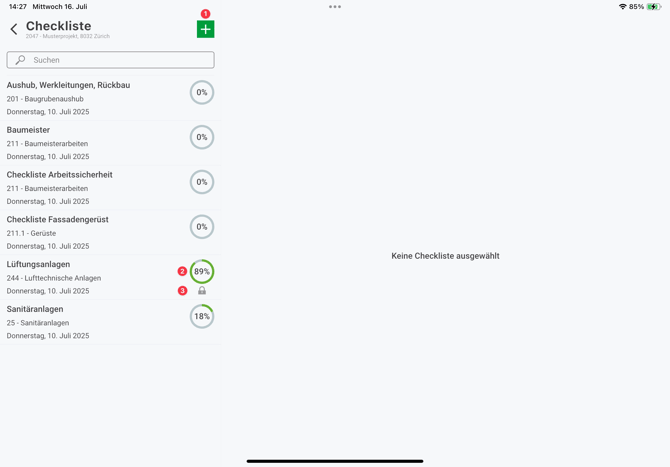
You can see an overview of all your checklists in a project.
You can create a new checklist by clicking on the green plus sign (1).
In addition, each checklist shows the percentage of completion (2) and whether a checklist has been locked (3).

View checklist
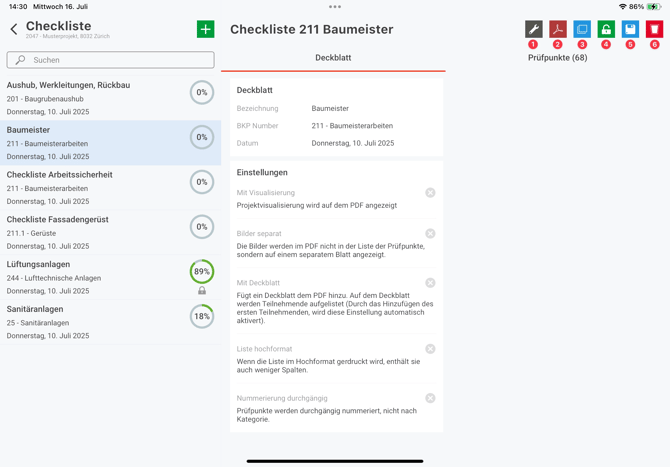
The checklist can be edited using the spanner icon (1).
The PDF can be created using the PDF icon (2). If participants are stored, the PDF will have a watermark with the words ‘Preview’ until it is locked (4).
The checklist can be copied using the blue icon (3). The information and all checkpoints are also copied. If participants have already been entered, they can also be copied.
If the checklist is locked (4), no further changes can be made to it. If the checklist is unlocked again, all signatures under participants will be deleted.
The checklist can be saved as a template using the save icon (5). This option is only available to superusers.
The checklist is deleted using the recycle bin (6).

Checklist Checkpoints
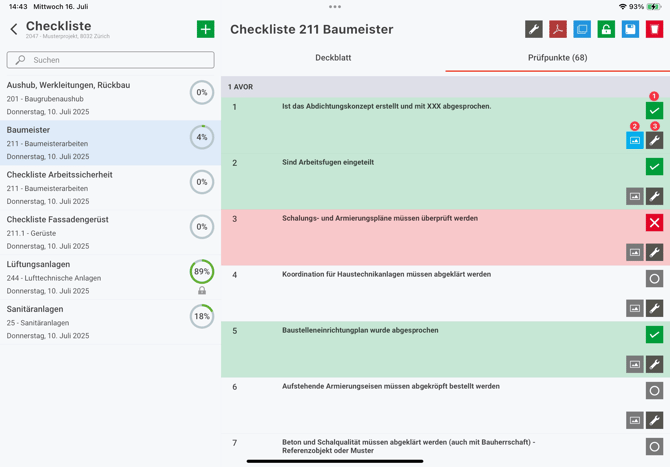
All checkpoints for this checklist are displayed under Checkpoints. If the checkpoints have been assigned to categories, they are displayed grouped by category. You have the following options for the checkpoints:
- The first icon symbolises the status. If the checkpoint has not yet been checked, a grey icon with a circle is displayed. When you select the icon, it turns green with a tick and sets today's date as the completion date. The date can be adjusted later. Selecting it again changes the status to red with a cross. If the status is selected again, it is reset to grey.
- Images can be uploaded for each checkpoint. If images have been uploaded for a checkpoint, the icon is displayed in blue.
- The spanner symbol can be used to view and edit the detailed settings for the checkpoint.
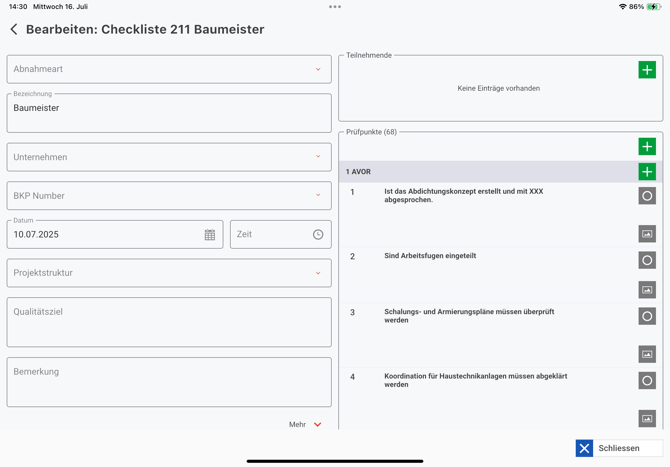
Add new checklist
Superusers or project administrators can create new checklists using the green plus sign. The checkpoints can then also be edited by a user.
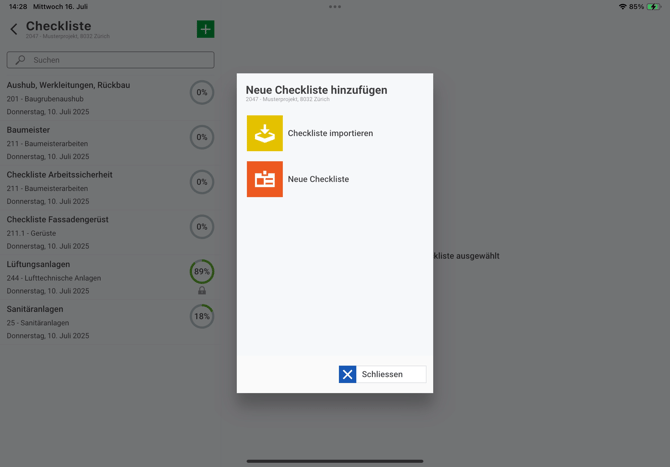
When creating a checklist, you can choose whether you want to create a new checklist or import an existing one. Templates that can be imported are stored by superusers on the desktop in the admin menu.

In the input mask, you can enter the type of acceptance, description, company, etc.
A company can be added by clicking on the green plus sign next to Participants. If the company does not yet exist, it must be added either in the REΛLVIEW app via the address list or on the desktop via the address list. You can then optionally add a person and have them sign, or set a placeholder for a signature.
The individual points are listed under Checkpoints. If the checkpoints have been assigned to categories, the categories are displayed alphabetically in the grey bar. A new checkpoint can be added using the green plus sign next to Checkpoints. If the green plus sign next to the category is selected, the checkpoint is created directly under this category.