The functions are identical on mobile phones and tablets, but the display varies.
Downloadlink REΛLVIEW App iPhone / iPad
Downloadlink REΛLVIEW App Android
❗ The view in the mobile app differs from the desktop version!
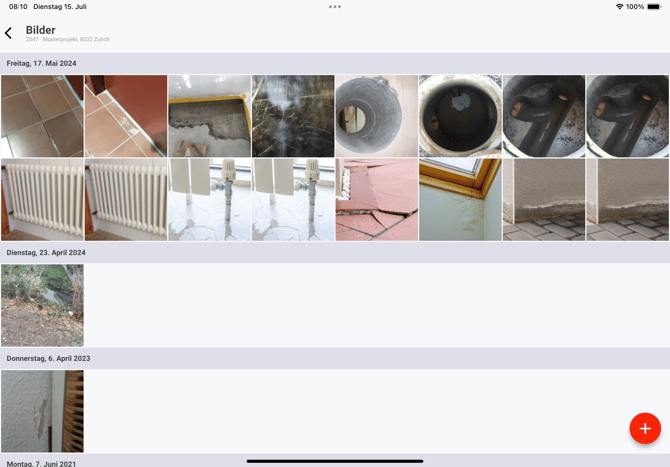
All images created in this project are displayed below the images. The images are stored according to their date of capture.
The red plus sign allows you to take additional images with your camera or add them from your local image gallery.

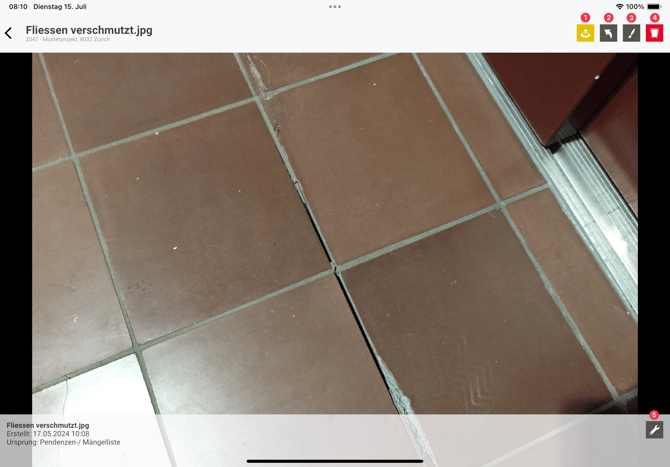
When you select an image, the following options are available:
- Export (1): Depending on your device, various export functions are available.
- Rotate image (2): Rotates the image clockwise by 90°.
- Edit image (3): You have various options for editing the image. You can find the editing options under Edit image.
- Delete (4): Deletes the image from the images. The image is also deleted from the entry it was created in (e.g. pending items, construction log, checklist, etc.) if this is not locked. Images remain available for locked documents.
- Details (5): Image details such as the creation date and image name can be adjusted.

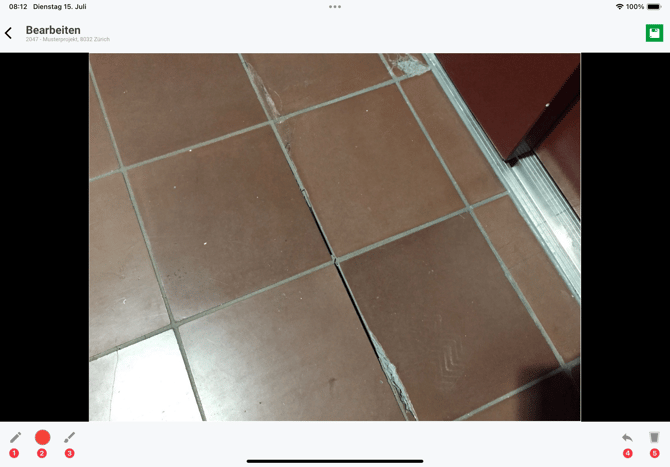
Edit image
You can edit the image to show a detail more clearly, for example. You have the following editing options:
- Select tool (1)
- Change pen/text colour (2)
- Adjust pen/text size (3)
- Undo last change (4)
- Undo all changes (5)