The functions are identical on mobile phones and tablets, but the display varies.
Downloadlink REΛLVIEW App iPhone / iPad
Downloadlink REΛLVIEW App Android
❗ The view in the mobile app differs from the desktop version!
In the storage area, you have the option of adding files to the project. In addition, all locked documents are automatically stored in the storage area.
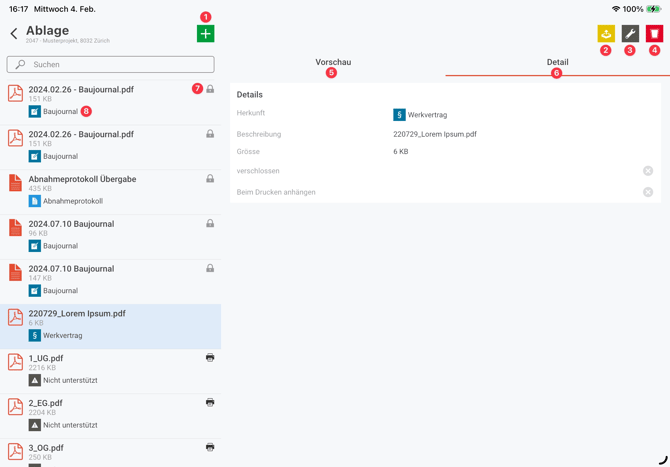
You can manually add additional files to the storage area using the green plus sign (1).
You can export a document using the export function (2).
For documents that have not yet been locked, you can use the wrench icon (3) to edit the description.
Documents that have not yet been locked can be deleted using the trash can icon (4).
You can switch between the preview (5) and detail (6) views. The preview shows you a preview of the document. In the detail view, you can see all the information about this document.
If there is an icon with a lock (7) next to a document, it is a locked document.
The origin (8) of a document is displayed below the document.