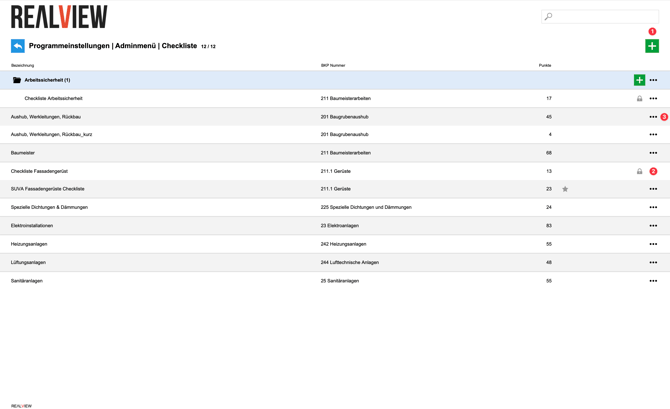
In the Admin menu, new checklist templates can be created, which can then be imported into the projects by a Superuser or the Project management.
A new checklist can be created via the green plus (1). You can find more information under Create a new checklist.
In the overview, a lock (2) appears next to blocked checklists.
The three dots can be used to create a new folder (3) or move checklists to an existing folder.
Create a new checklist
A new checklist can be created via the green plus.
Checklist
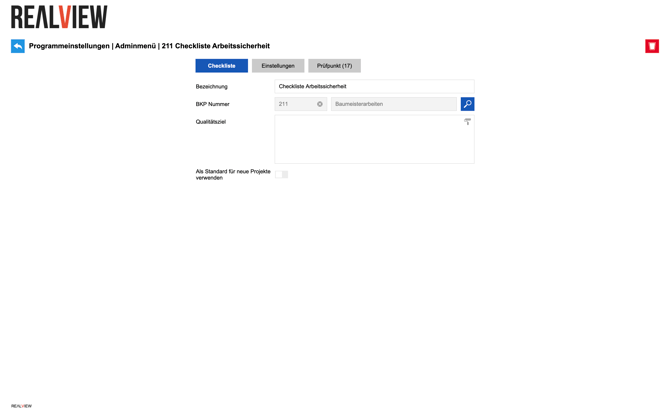
In the Checklist tab, the Description, BKP Number and Quality target can be entered. If the checklist is used as default for new projects, it is automatically created when a new project is opened.
The recycle bin icon at the top right deletes the checklist.
Settings
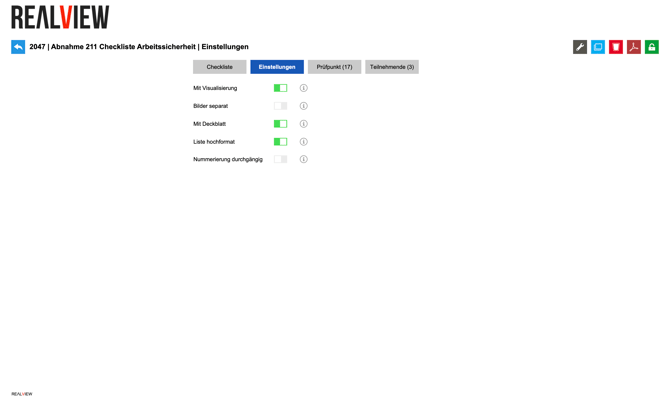
In the Settings, adjustments can be made to the printout.
If “With visualization” is active, the project image is shown on the cover sheet. For Work safety checklists, the pictogram is shown instead of the visualization.
With “Images separately”, the images in the PDF are not shown in the list of checkpoints but on a separate page.
Adds a Cover sheet to the PDF. Participants are listed on the cover sheet. This setting is activated automatically when the first participant is added.
You can display the list of checkpoints in portrait format. The list in portrait format contains fewer columns than the list in landscape format.
With Continuous numbering, the checkpoints are not numbered within the category but across the entire checklist.
Checkpoint
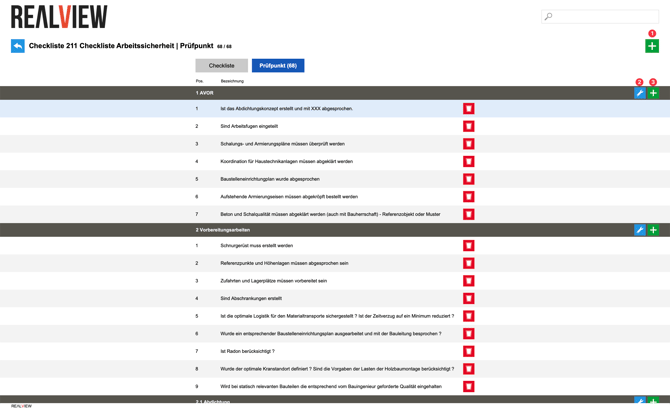
The individual items are listed under Checkpoints. If the checkpoints have been assigned to categories, the categories are shown alphabetically in the grey bars.
A new checkpoint can be created via the green plus (1).
Via the grey bar with the category, the category can be renamed (2) or a checkpoint can be entered directly in this category (3).
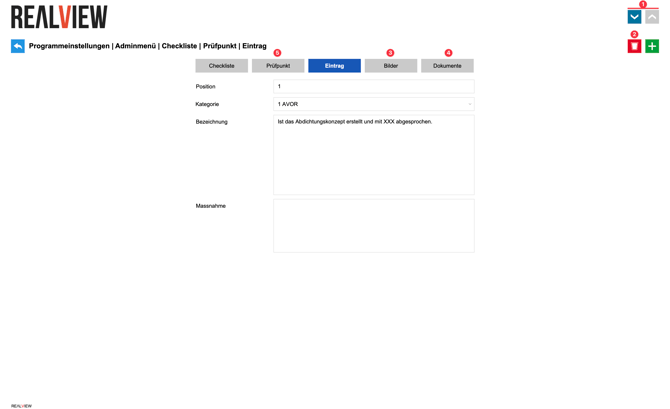
The detail view shows all information about a checkpoint.
The arrow buttons (1) can be used to switch between checkpoints.
The checkpoint can be deleted with the recycle bin (2).
Via the Images tab (3) the images for this checkpoint can be viewed or new images added.
Via the Documents tab (4) the documents for this checkpoint can be viewed or new documents added.
Via Checkpoint (5) you can switch back to the list of all checkpoints.