Visibility#
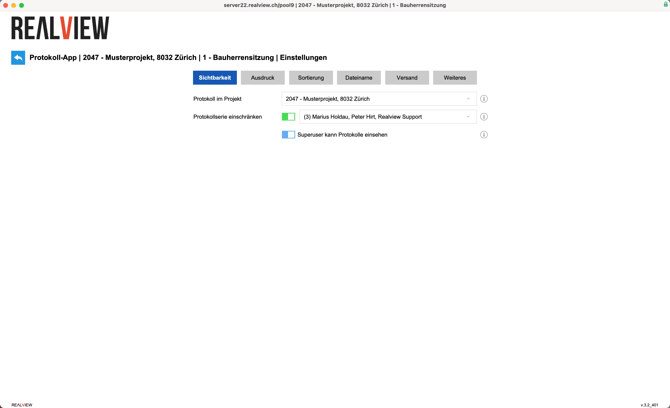
If another project is selected in Log in project, the log will be moved to that project.
You can also restrict the log series. If you use this option, only the selected persons can view and edit this log—other project participants will not be able to see the log. You can also specify whether superusers should be able to view the log or only the selected users.
Print#
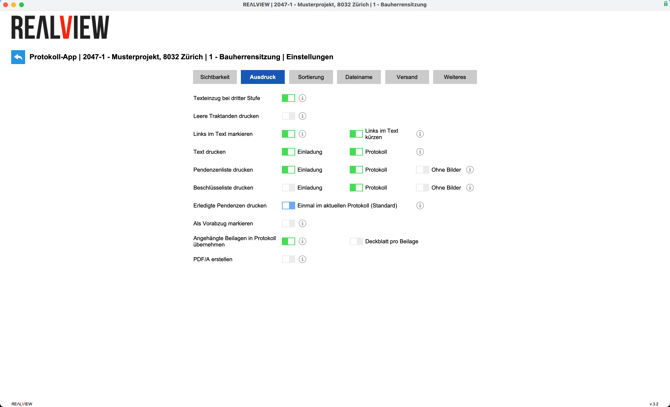
If Text indentation at third level is active, item numbers with three or more digits (3.2.1) are indented by approx. 4 mm.
If Print empty agenda items is active, agenda items are also printed if they do not contain any text entries.
If Mark links in text is activated, all links (beginning with https:// and http://) are marked in blue and underlined. In a second step, you can shorten the links in the text. For example, https://link.realview.ch/345kdE8i
With Print text, you can choose whether the text should appear in the PDF of the minutes and/or the invitation. If the function is deactivated, the text will not appear in the PDF of the minutes and/or the invitation.
With Print pending list, you can choose whether the pending list should appear in the PDF of the minutes and/or the invitation. If the function is deactivated, the pending list will not appear in the PDF of the minutes and/or the invitation.
With Print resolution list, you can choose whether the resolution list should appear in the PDF of the minutes and/or the invitation. If the function is deactivated, the resolution list will not appear in the PDF of the minutes and/or the invitation.
With Print completed pending items, you can set whether the pending items completed in these minutes should still appear in the current minutes (default), whether the completed pending items should always be printed in every set of minutes, or whether the completed pending items should be hidden immediately.
Can be activated to mark a set of minutes as a preliminary draft.
If Include attached attachments in minutes is active, the PDF attachments are attached directly to the minutes when the PDF of the minutes is generated. If the function is deactivated, the attachments are sent as separate files in the email. Only PDF attachments can be attached directly to the minutes.
If you want to use PDF/A, you can activate this function. The PDF log will be converted to PDF/A, provided there are no transparent elements. PDF/A complies with ISO standard 19005-2:2012 (PDF/A-3) and is used for long-term archiving.
Sorting#
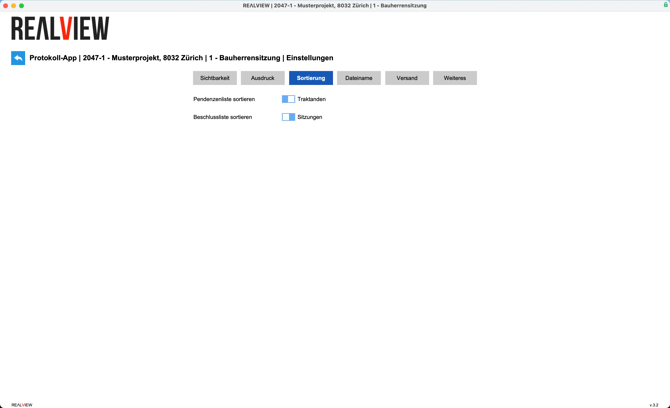
Under Sorting, you can set whether the list of pending items and resolutions should be sorted by agenda item or by meeting.
If the list of pending items or resolutions is sorted by agenda items, the agenda items are displayed in the gray bar and the pending items/resolutions in the agenda items are listed below. Example: Agenda item 2 – Pending items
When sorted by meeting, the meetings are displayed in the gray bar and the pending items/resolutions from that meeting are listed below. Example: Meeting 1 – Builder's meeting
Filename#
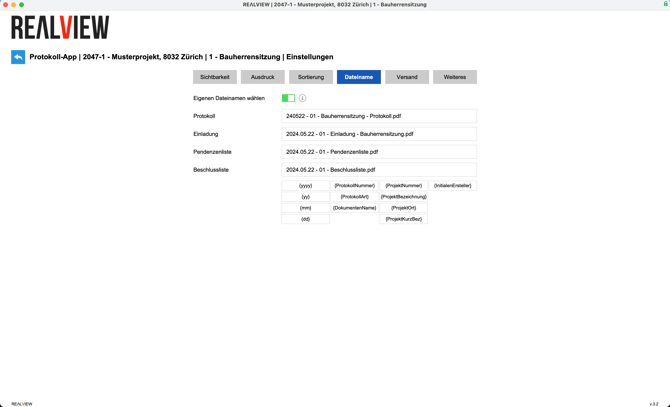
If this function is active, you can choose a separate file name for the minutes, invitation, list of pending items, and list of resolutions, which will be generated automatically. Placeholders can be used to help you:
- {yyyy} - four-digit year
- {yy} - two-digit year
- {mm} - two-digit month
- {dd} - two-digit day
- {MinutesNumber} - minutes number
- {MinutesType} - minutes type, name of the minutes
- {DocumentName}
- {ProjectNumber} - Project number
- {ProjectName} - Project name
- {ProjectLocation} - Project location
- {ProjectAbbreviation} - Project abbreviation
- {InitialsCreator} - Initials of the log creator
Versand#
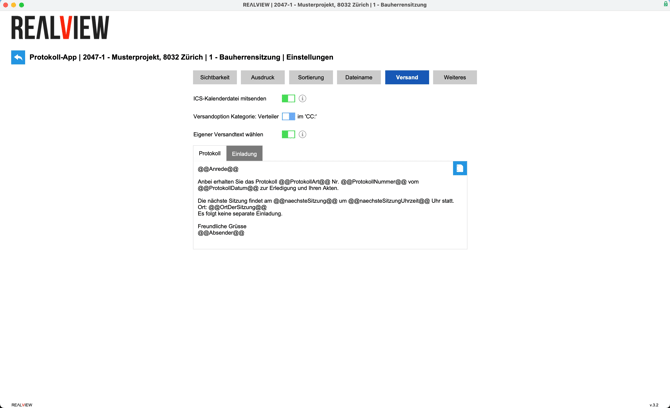
If Send ICS calendar file is enabled, a calendar file will be sent along with the minutes for the next meeting or the invitation.
You can choose whether people with the distribution list category are added to the email in CC or CCB.
If custom message is enabled, you can enter a custom message for the invitation and the minutes. If this function is deactivated, the mailing text from the program settings is automatically used.
More#
General#
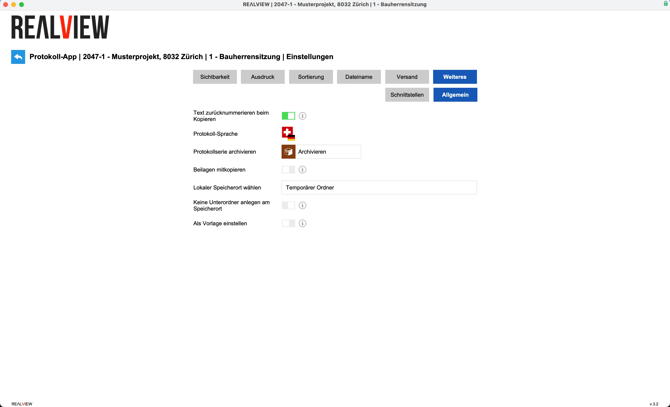
If Renumber text when copying is enabled, the position numbers of the text entries are reset to 1 when copying to a new log.
The language of the log author is automatically set as the log language. This can be adjusted for each log. The user language can be adjusted in the Program Management.
Individual log series can be archived. In the project settings, you also have the option of archiving an entire project. Archived logs can be opened and read. You can also unarchive them in the upper right corner of an archived log.
If Copy attachments is enabled, the attachments will be copied when the log is copied.
With the Local storage location, you can select a folder in which the logs are automatically stored when sent.
If the Do not create subfolders at storage location function is deactivated, a subfolder with the log number and log series is created for each session or log.
This log is used as a template and can be copied to another log series. Templates can only be created and edited by a superuser.
Interfaces#
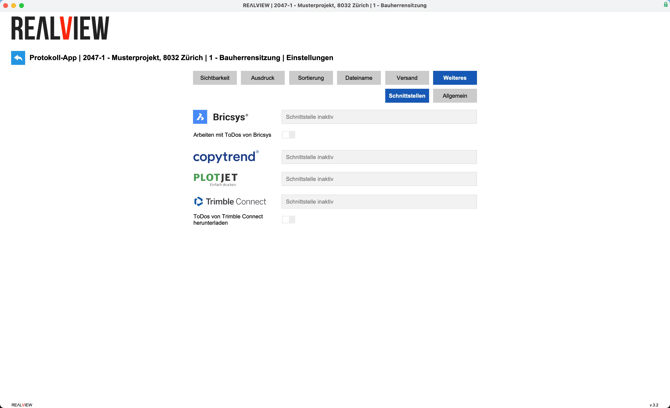
At the bottom, you will find options for linking the protocol to one of the available programs. For more information about the interfaces, please contact REΛLVIEW Support at 044 512 18 00 or support@realview.ch.