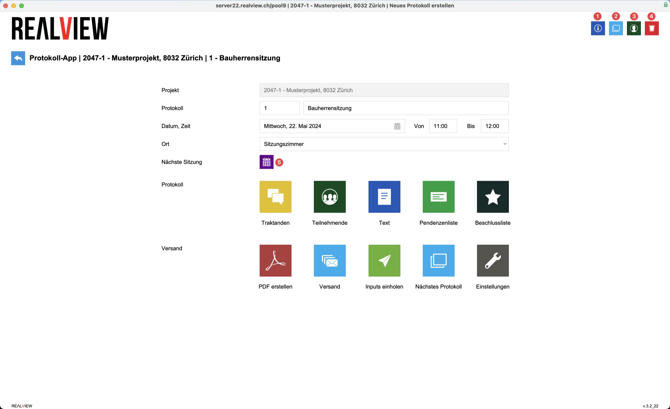
In the minutes overview, click the green plus to create a new set of minutes.
The info icon (1) shows the history of the minutes. It indicates when a PDF or a mailing was created, and when the minutes were copied.
The copy icon (2) copies the entire set of minutes, including the agenda items, participants, text and minutes header. After confirming, you can choose which project to copy the minutes to. Please note: after copying, you will be taken directly to the copied minutes!
Use the green icon (3) to select the meeting location and the person who prepared the minutes. The location and the author appear at the bottom of the invitation / minutes.
The trash icon (4) deletes the current set of minutes. Only the current set is deleted, not the entire minutes series.
Use the purple icon next to Next meeting (5) to enter information for the next set of minutes in the series. You can specify the meeting interval or the date, time and location of the next meeting. Until this information has been entered, you cannot move to the next set of minutes, and the icon will remain grey!