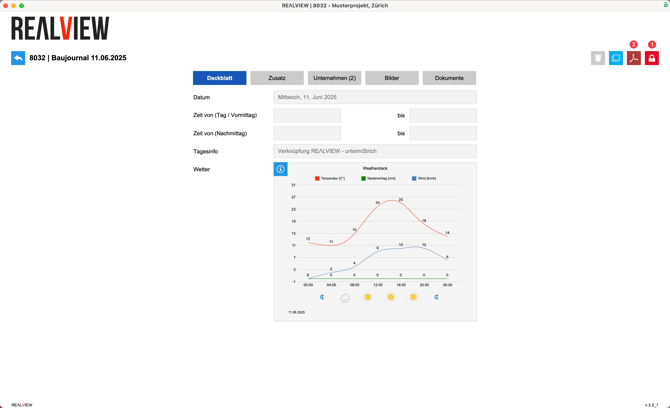
Scope of Functions
The interface between REΛLVIEW and untermStrich includes the following functions:
- Project import from REΛLVIEW to untermStrich
- Address synchronization from untermStrich to REΛLVIEW
- Uploading locked documents from REΛLVIEW to untermStrich
REΛLVIEW
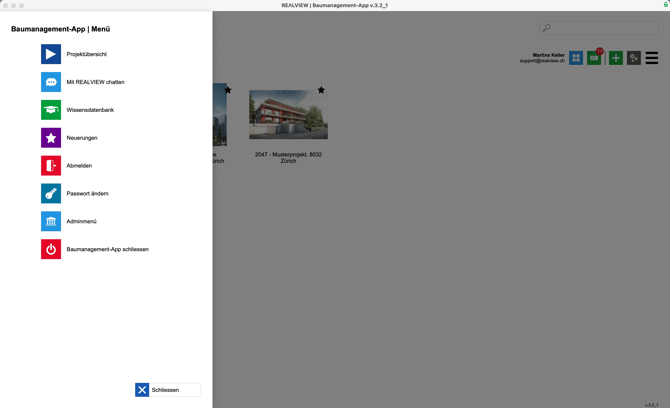
The side menu can be opened via the three bars in the top right corner or by clicking the company logo in the top left corner. From there, Superusers can access the admin menu. This option is only available for Superusers.
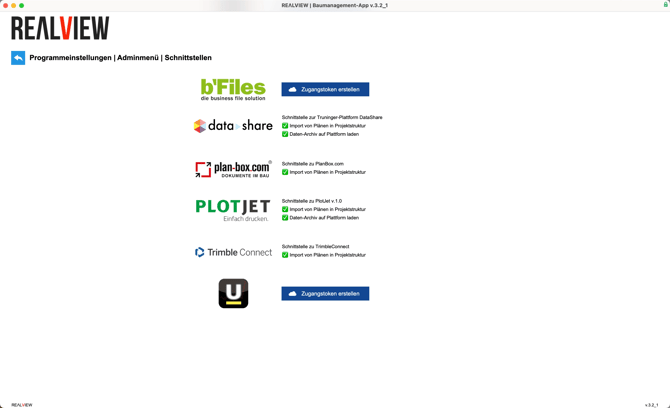
In the admin menu, you can now open the integrations section and generate the access credentials for untermStrich there. The token will be copied to your clipboard and can be copied again at any time by clicking the field once more.
untermStrich
Log in to your untermStrich environment. To set up the integration, your untermStrich version must be at least version 14.7.
If you use untermStrich as a SaaS solution, the integration must be set up with O365.
If you use untermStrich as a locally hosted database, the REΛLVIEW Butler can be installed directly.
Connect O365 (SharePoint)
If you only require the integration for projects and addresses, you can proceed to Connect REΛLVIEW.
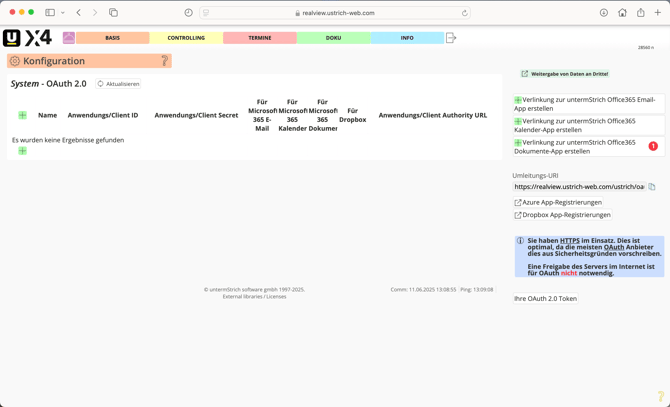
If you would like to connect Office 365 (SharePoint) so that locked documents from REΛLVIEW can be transferred, you can open the configuration via Basic and then open the OAuth 2.0 (1) settings there.
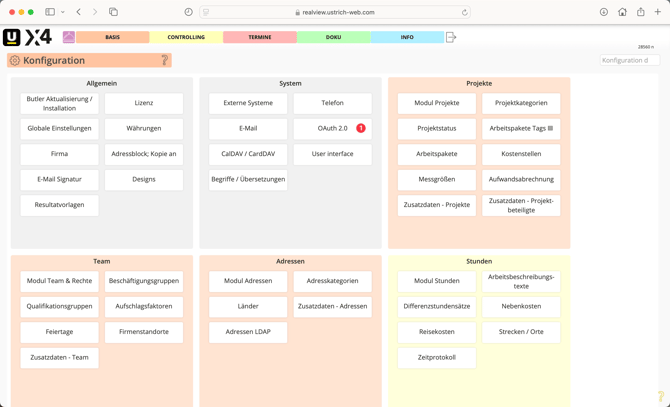
On the right-hand side, you can select "Create link to the untermStrich Office 365 Documents App" (1).
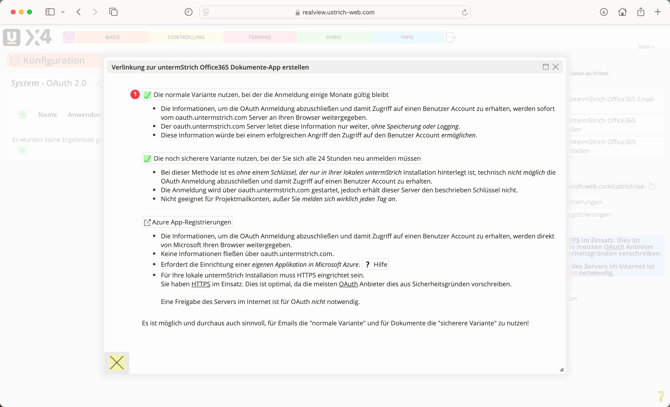
A new window will then open. In this window, the standard option (1) must be selected.
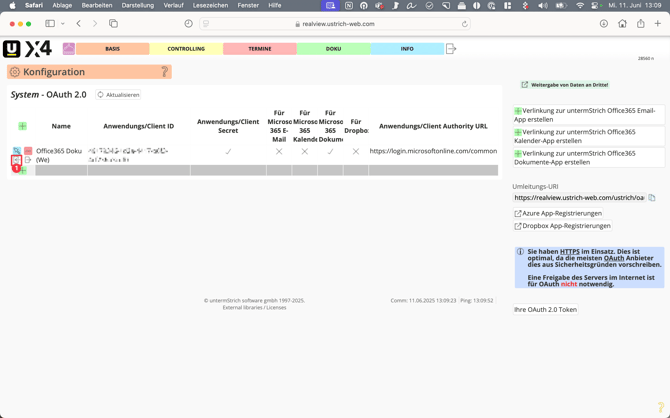
The setup is now visible. To complete it, click the small icon (1) below the icon with the arrow.
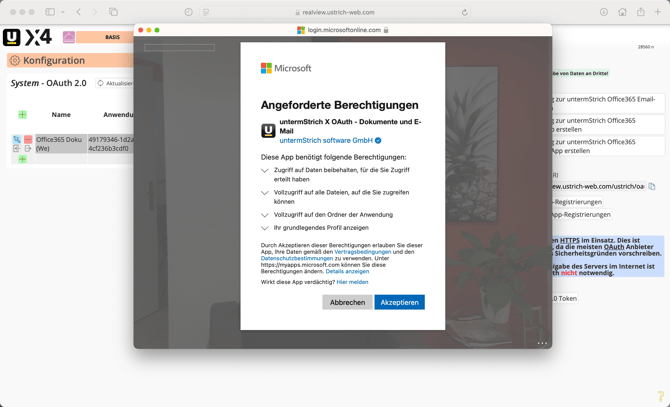
A separate window will now open for the sign-in process or — if you are already signed in — for connecting to Office 365. This connection must be accepted in order to use the integration.
Install REΛLVIEW Butler
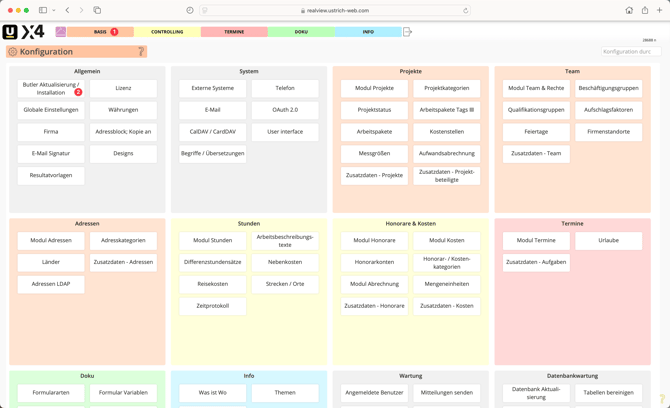
Navigate to the configuration via Basic (1) and select "Butler Update / Installation" (2).
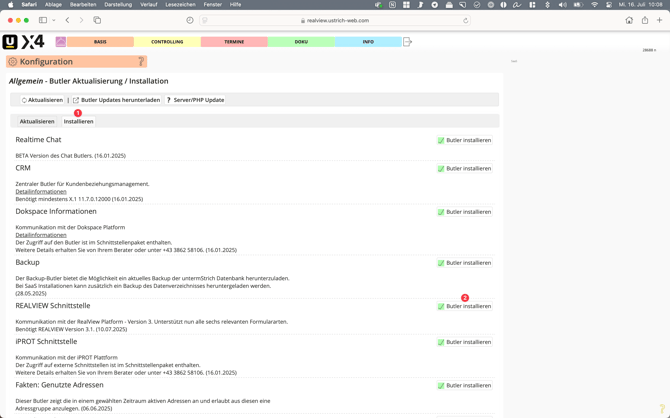
Switch to the Install tab (1) and click "Install Butler" for the REΛLVIEW integration (2).
Connect REΛLVIEW
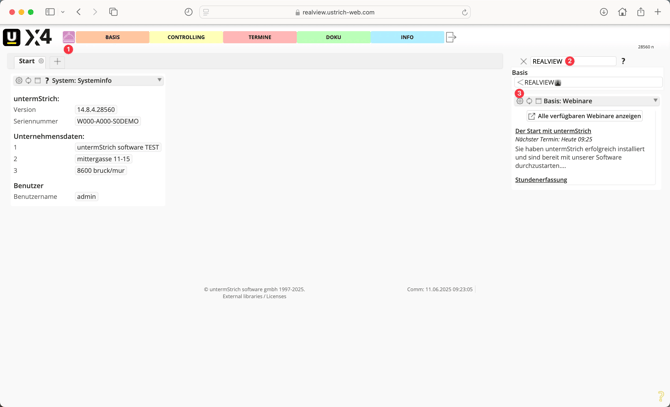
Switch to the Butler section (1) and search for REALVIEW in the Butler search (2). You can now add the Butler using the arrow button (3).
Using the gear icon (1), you can configure the REΛLVIEW Butler. You can define the size of the Butler, the account, the form type, and a title. If you have not yet created an account, you can do so via "Configure REALVIEW Account" (2).
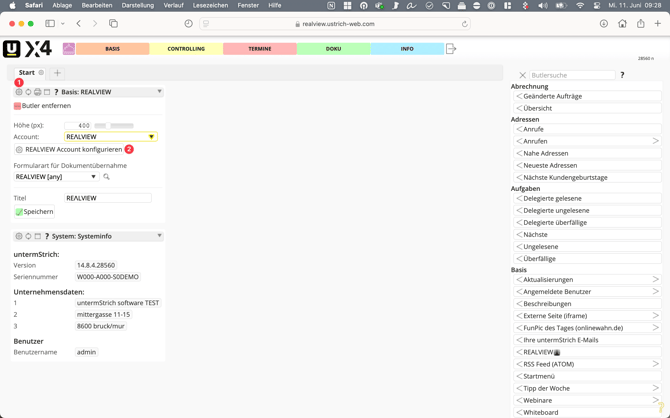
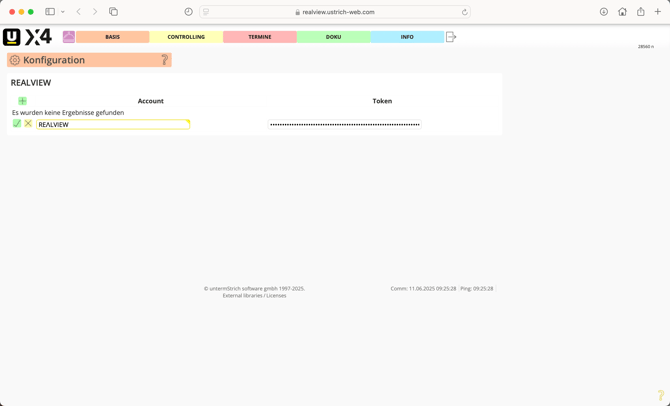
The configuration opens in a separate tab. To create a new account, you can choose an account name and add the token from REΛLVIEW. The account can be saved using the green check mark.
Create Project, Assign Addresses
When you create a project in untermStrich, it is automatically created in REΛLVIEW as well. To do this, you can create a new project under Basic Projects using the g
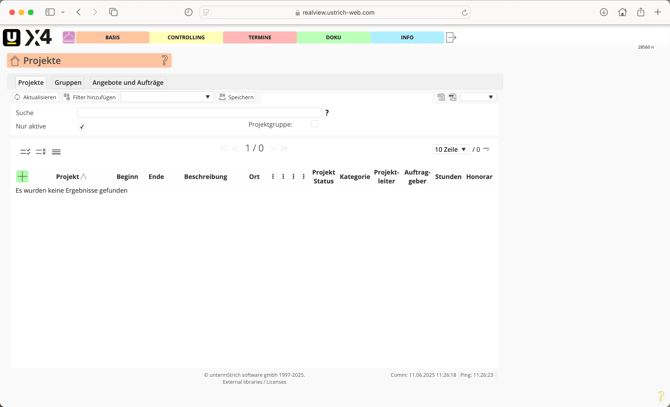
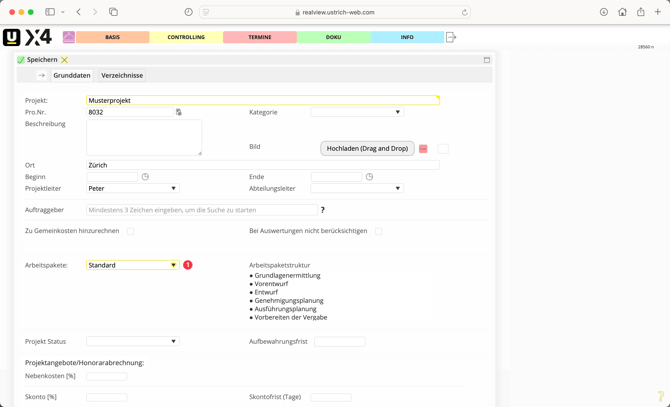
Here, you can now enter the project details. It is important that Standard is selected under Work Packages (1).
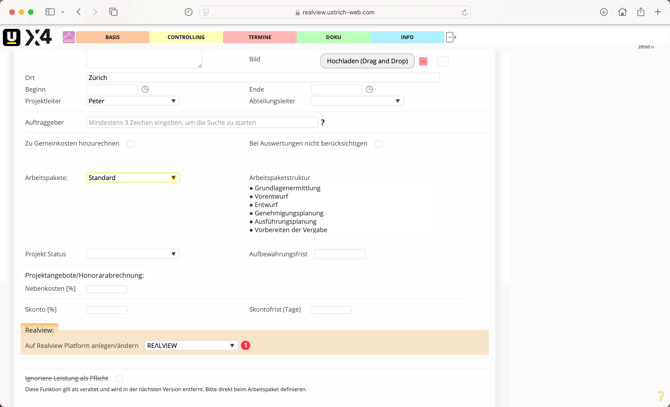
For the Standard work package, the REALVIEW option is displayed. The REΛLVIEW Butler can now be assigned there.
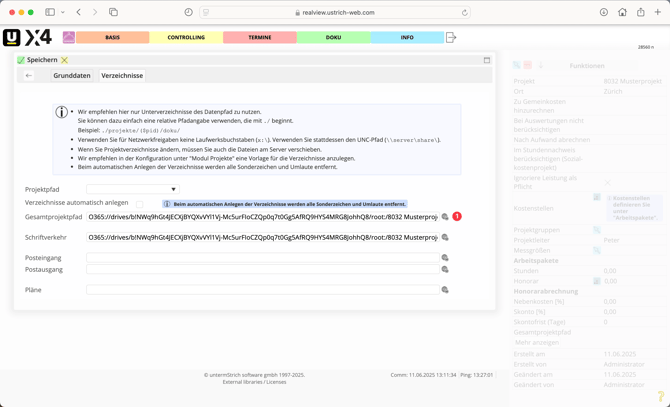
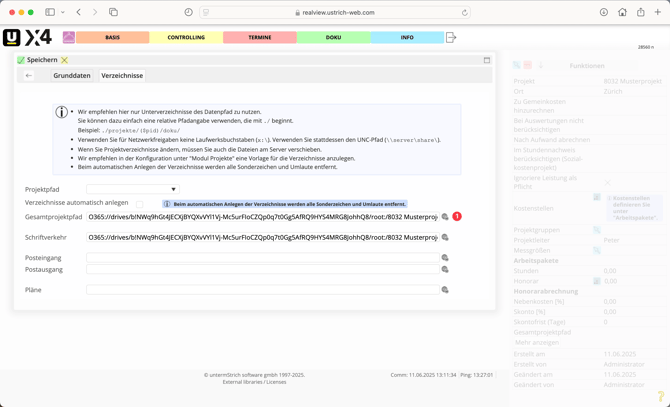
You can now switch to the Directories tab. Here — provided that the Office 365 integration has been set up — the storage paths for the documents can be defined. To do this, click the icon (1) on the right to open SharePoint and select the desired folder.
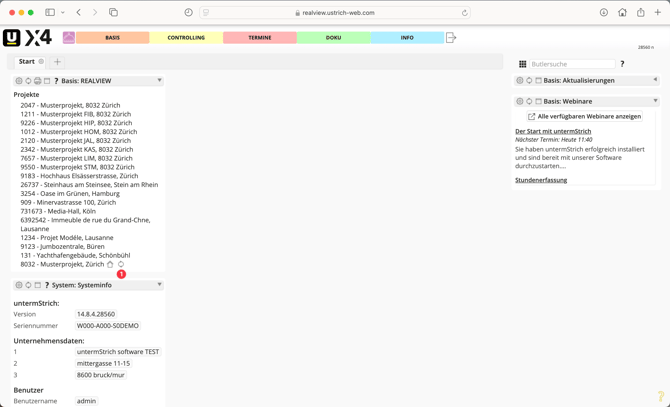
Once the project has been created, you will also find it in REΛLVIEW. You can open the project participants’ addresses via the three dots menu.
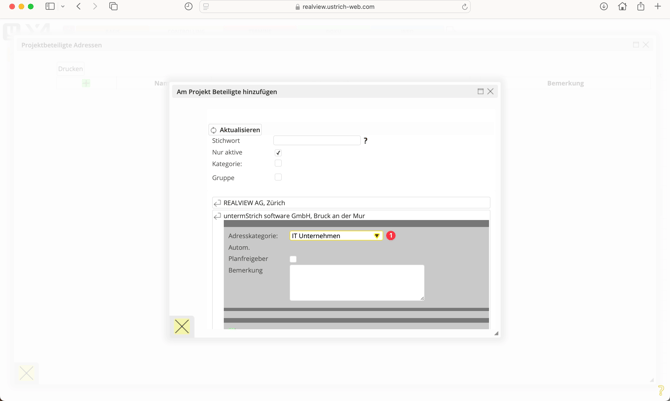
Using the green plus icon, an existing address from the address directory (Basic > Addresses) can be added. It is important to assign a trade designation in the address category.
The trade designation will be transferred to REΛLVIEW. The trade designation must not be removed from the address or from the address categories at a later point in time.
Synchronize Addresses and Documents
From the Butler overview, the synchronization (1) of addresses and documents can be triggered. The addresses will be transferred, as well as the documents that have already been marked as completed in REΛLVIEW and for which the final PDF has been created.
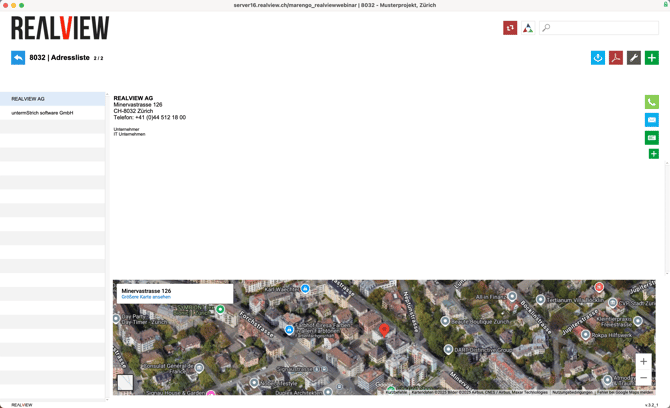
The addresses are displayed in the address list in REΛLVIEW. If an address is deleted in untermStrich, it will remain in REΛLVIEW.
If an address is deleted in REΛLVIEW, it will be transferred back to REΛLVIEW from untermStrich during the next synchronization.
Locked and generated PDFs are transferred to SharePoint during synchronization. Please note that only locked documents (1) (such as acceptance reports, construction journals, or file notes) can be transferred. In addition, the PDF for the respective document must have been generated once after locking it via the PDF icon (2).